Running SFTP on Kubernetes with GCS as Backend Storage
A Step-by-Step Guide for DevOps Engineers
Source Code: github.com/devops-skill-experts/sftp-gcs-k8s | DevHub Blog
1. Introduction
If you've ever needed to receive files from a partner or build a data ingestion pipeline on Kubernetes, you've probably asked yourself: "How do I let external parties send files in?" SFTP is the answer — it's simple, secure, and most partners already support it.
In many systems that exchange files with external partners or run data ingestion pipelines, SFTP (SSH File Transfer Protocol) remains a widely adopted standard. While Kubernetes excels at running stateless workloads, setting up an SFTP server that works with durable and scalable storage requires careful design.
The challenge is: if we run SFTP on Kubernetes, where do we store the files? Using a regular disk (Persistent Volume) means managing additional storage, files are confined to a single pod, and scaling is difficult. GCS (Google Cloud Storage) is a much better option because:
- No need to provision disks in advance
- Files live in the cloud, not tied to any specific node
- Costs are based on actual usage
- Other teams can access files directly via GCS without going through SFTP
This guide walks you through setting up an SFTP server on Kubernetes using Google Cloud Storage (GCS) as the backend storage, so files uploaded via SFTP are automatically stored in GCS — no Persistent Volume management required.
2. Architecture Overview
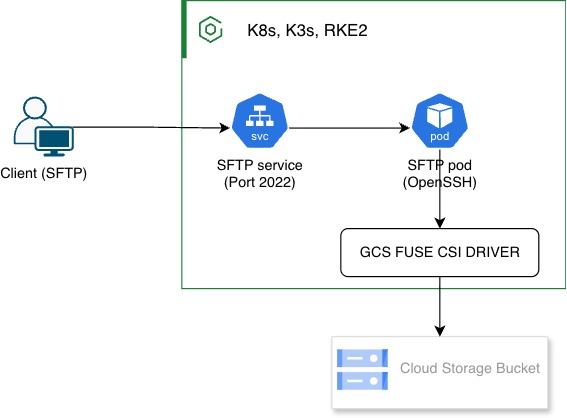
The flow of this system is straightforward
| Component | Role |
|---|---|
| SFTP Container | Runs an OpenSSH SFTP server inside the pod, handles authentication and file transfers |
| gcsfuse | Mounts a GCS bucket as a FUSE filesystem, allowing SFTP to read/write files on GCS as if it were a local disk |
| Kubernetes Deployment | Manages the pod lifecycle, including volume mounts and secrets |
| Service (NodePort / LB) | Exposes port 22 externally so clients can connect |
| GCS Bucket | The actual storage — all files uploaded via SFTP end up here |
| K8s Secret | Stores the GCS service account key and SFTP user credentials |
3. Prerequisites
Before starting, make sure you have all of the following
| # | Requirement | Notes |
|---|---|---|
| 1 | Kubernetes cluster | GKE, K3s, or RKE2; single node is enough for testing |
| 2 | GCS Bucket | Create in Google Cloud Console |
| 3 | GCP Service Account | Must have Storage Object User permission on the bucket |
| 4 | kubectl | Installed and kubeconfig configured |
| 5 | gcloud CLI (optional) | Used to create bucket and service account |
| 6 | Git | For cloning the prepared repository |
4. Choosing an Approach
Before diving in, it's worth understanding the available options for implementing SFTP + Cloud Storage on Kubernetes.
Option A: SFTP container + gcsfuse (this guide uses this approach)
Mount the GCS bucket into the pod via a FUSE filesystem and have SFTP read/write directly from it. No changes to the SFTP binary are needed.
- Pros: Easy setup; works with a standard SFTP image out of the box
- Cons: gcsfuse has slightly higher latency than local disk; not ideal for high-performance requirements
Option B: SFTP server with native object storage support
Some SFTP servers (e.g., SFTPGO) support GCS as a backend directly, without needing to mount anything.
- Pros: Better performance than FUSE; explicit configuration
- Cons: Requires a specialized SFTP server; configuration may be more complex
Option C: Sidecar sync
Use a sidecar container to continuously sync files from the SFTP local filesystem to GCS.
- Pros: SFTP writes files locally at full speed
- Cons: Delay between upload and file appearing in GCS; requires handling edge cases
💡 Note: This guide uses Option A because it's straightforward, uses a ready-made image, and is ideal for teams that want a fast, low-complexity, easy-to-maintain solution.
5. Prepare GCS
This section covers creating the GCS bucket and service account that the SFTP pod will use to authenticate with GCS.
5.1 Create GCS Bucket
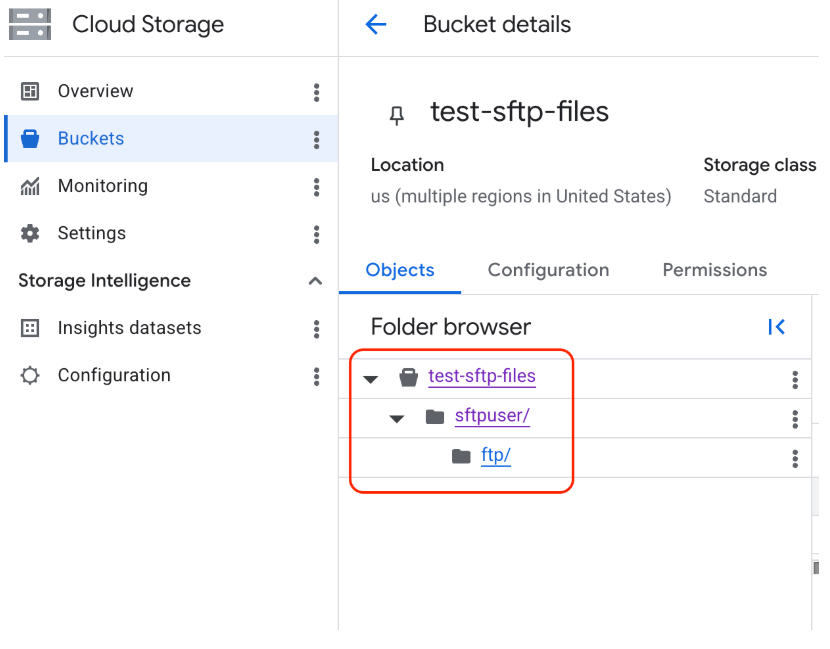
It's recommended to create the GCS bucket via the Google Cloud Console UI to avoid errors. Navigate to Cloud Storage > Buckets > Create.
After creating the bucket, make sure to create a folder that matches the mount path you'll use, e.g., /sftpuser/files.
5.2 Create Service Account
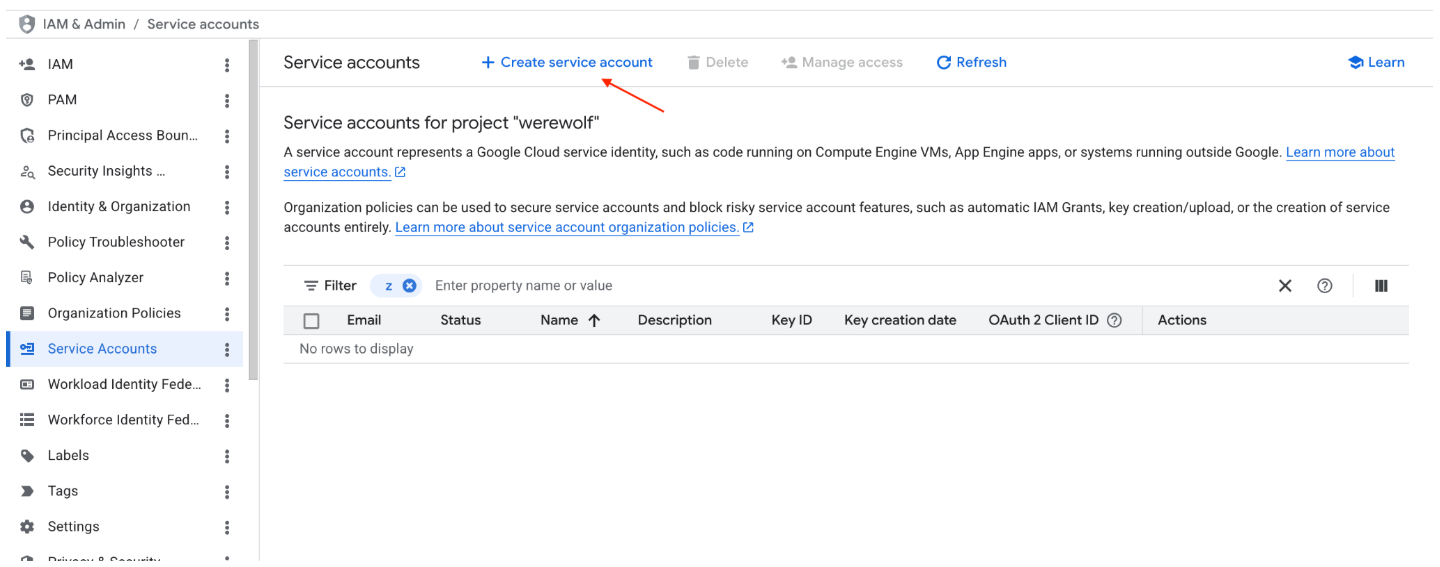
Create the service account via IAM & Admin > Service Accounts > Create Service Account.
Steps:
- Set a name for the service account (e.g.,
sftp-gcs-sa), then click Create and Continue - Assign the role: Storage Object Admin (
roles/storage.objectUser), then click Continue and Done
5.3 Download Service Account Key
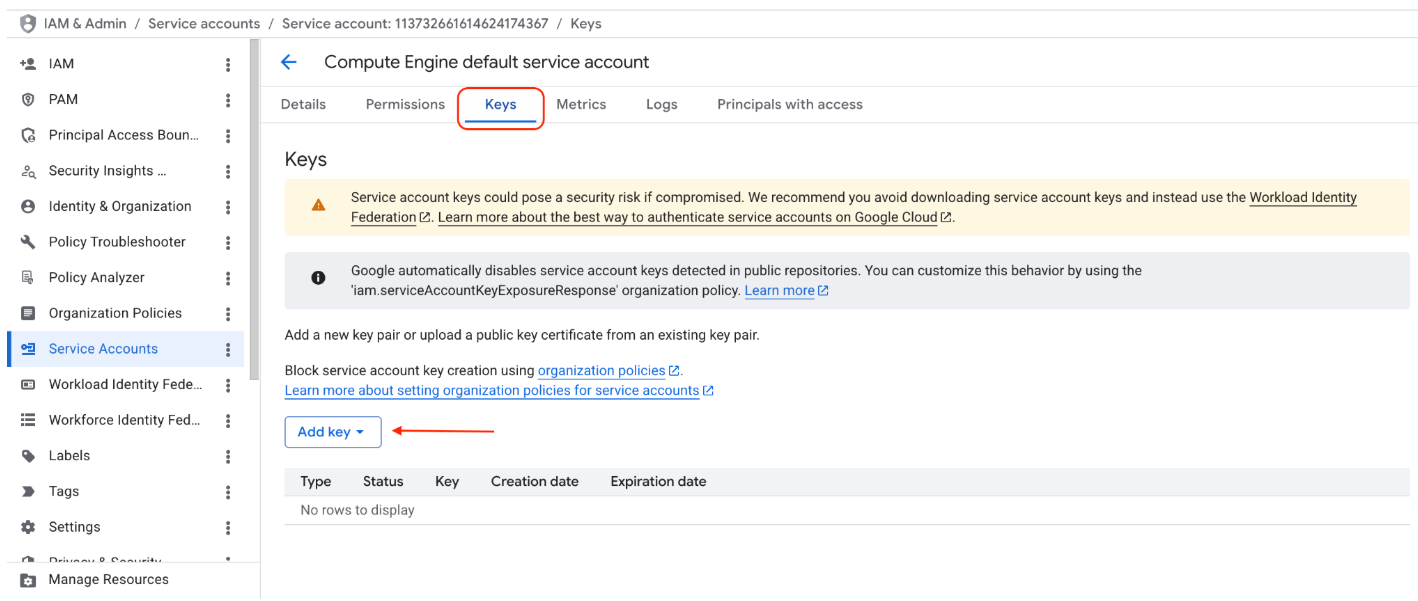
Click on the created service account > select the Keys tab > click Add Key > Create new key > JSON > Create to download gcloud-key.json.
💡 Note: Keep the
gcloud-key.jsonfile secure. Never commit it to Git. We'll store it as a Kubernetes Secret instead.
6. SFTP Container Image
This guide uses an image called danuk/k8s-sftp-gcs, which is built on top of atmoz/sftp and comes with gcsfuse pre-installed — no need to build your own image.
SFTP user configuration is read from a users.conf file in the format:
username:password::::directory
Example used in this guide:
sftpuser:sftp123::::ftp
This creates a user named sftpuser with password sftp123, chrooted to /home/sftpuser/ftp.
💡 Note: In production, use SSH keys instead of passwords. See Section 11 for details.
7. Mount GCS to Pod (Core Concept)
This is the heart of the setup. We use gcsfuse to mount the GCS bucket into a directory inside the pod, then use a bind mount to make it accessible to SFTP.
The script that handles this is injected as a ConfigMap named gcs-mounts.sh:
#!/bin/bash

chown root:root /home/sftpuser
chmod 755 /home/sftpuser

mkdir -p /mnt/gcs-sftpuser
mkdir -p /home/sftpuser/ftp

export GOOGLE_APPLICATION_CREDENTIALS=/credentials/gcloud-key.json

gcsfuse -o allow_other \
  --uid 1000 --gid 100 \
  --file-mode 0664 --dir-mode 0755 \
  --implicit-dirs \
  --only-dir sftpuser/ftp \
  test-sftp-files /mnt/gcs-sftpuser

mount --bind /mnt/gcs-sftpuser /home/sftpuser/ftp
gcsfuse option reference:
| Option | Description |
|---|---|
--uid 1000 / --gid 100 |
Sets the ownership of mounted files to match the SFTP user inside the container |
--file-mode 0664 |
File permissions for mounted files |
--only-dir sftpuser/ftp |
Mounts only this subdirectory within the bucket, not the entire bucket |
-o allow_other |
Allows other processes (SFTP) to access the mount point |
Known gcsfuse Limitations
- Higher latency than local disk, since every I/O call goes to GCS
- Does not fully support POSIX file locking
- Large files may be slow, as the entire file may need to be read first
8. Kubernetes Deployment
All source code is available at: github.com/devops-skill-experts/sftp-gcs-k8s
Start by cloning the repo:
git clone https://github.com/devops-skill-experts/sftp-gcs-k8s.git
cd sftp-gcs-k8s
8.1 Secret: GCS Service Account Key
Create a Kubernetes Secret from the downloaded gcloud-key.json:
kubectl create secret generic sftp-gcloud-key \
  --from-file=gcloud-key.json=./gcloud-key.json
Or using a YAML manifest (requires base64 encoding first):
cat gcloud-key.json | base64 -w 0
# Paste the output into secret-gcs-key.yaml
8.2 Secret: SFTP Users
Define login users in secret-users.yaml:
apiVersion: v1
kind: Secret
metadata:
  name: sftp-users
type: Opaque
stringData:
  users.conf: |
    sftpuser:sftp123::::ftp
kubectl apply -f k8s/secret-users.yaml
8.3 ConfigMap: GCS Mount Script
kubectl apply -f k8s/configmap.yaml
8.4 Deployment
Key things to note in deployment.yaml:
- The container must run with
privileged: truebecause gcsfuse requires theSYS_ADMINcapability /dev/fusemust be mounted into the pod as ahostPath- There are 4 volumes:
users,gcs-mounts,sftp-gcloud-key,dev-fuse
kubectl apply -f k8s/deployment.yaml
💡 Note: Running containers in privileged mode has security implications. See Section 11 for details.
8.5 Service
Two options are available depending on your environment:
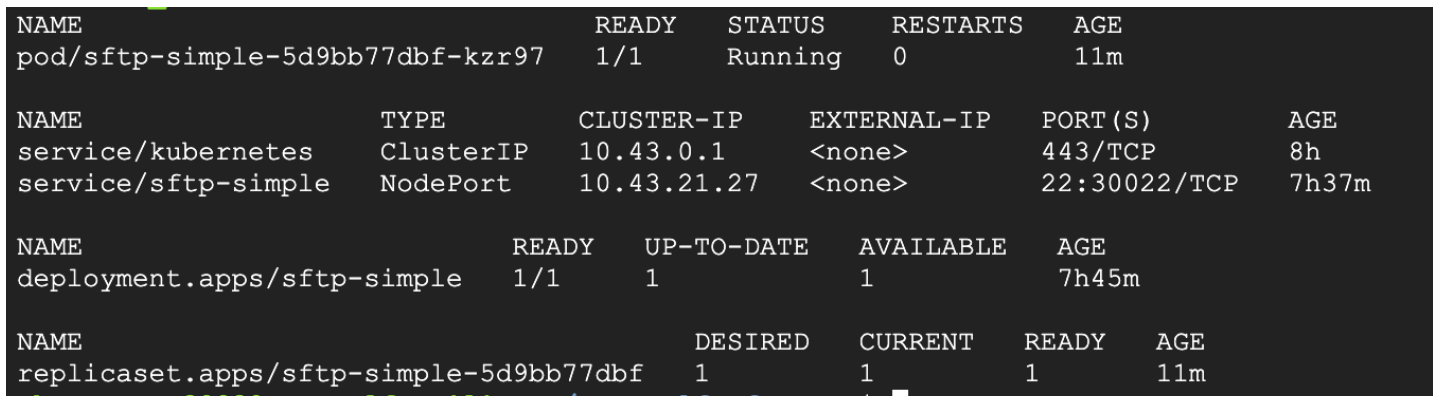
NodePort (suitable for local/test clusters)
kubectl apply -f k8s/service-nodeport.yaml
This exposes port 30022 on every node. Connect with:
sftp -P 30022 sftpuser@<NODE_IP>
LoadBalancer (suitable for GKE / cloud environments)
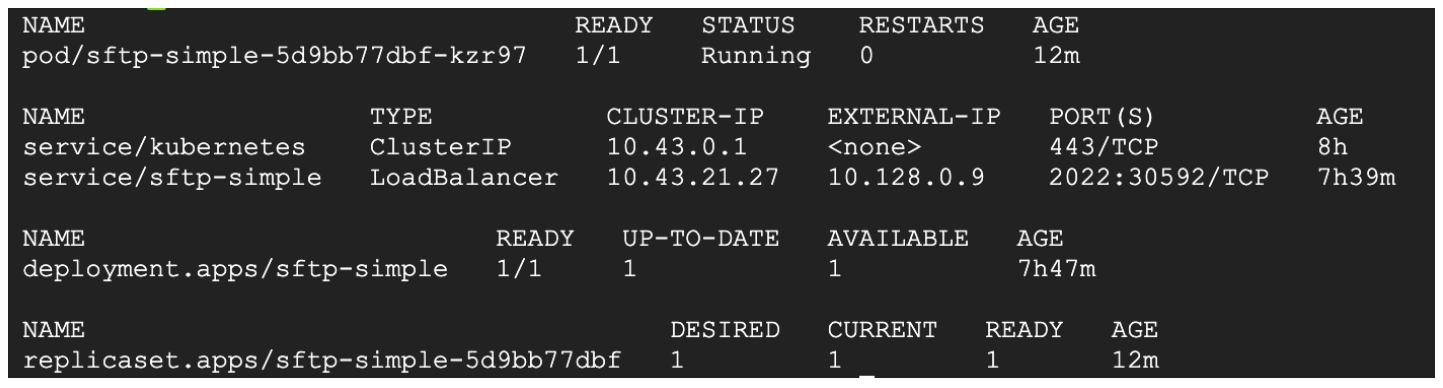
kubectl apply -f k8s/service-lb.yaml
Wait for an external IP from the cloud provider, then connect with:
sftp -P 2022 sftpuser@<EXTERNAL_IP>
9. Testing
With everything deployed, let's verify it works.
9.1 Connect via SFTP
# NodePort
sftp -P 30022 sftpuser@<NODE_IP>

# LoadBalancer
sftp -P 2022 sftpuser@<EXTERNAL_IP>
Enter password sftp123 and you should see the prompt:
sftp>
9.2 Upload a File
sftp> put test-file.txt
sftp> ls
test-file.txt

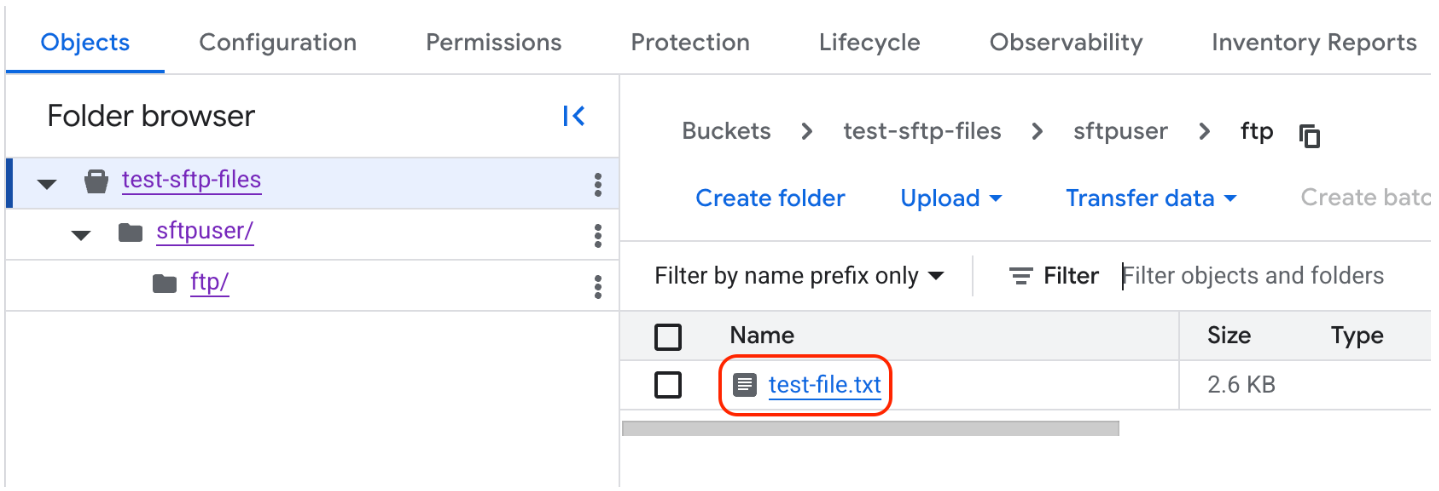
9.3 Verify in GCS
Check via the GCS Console or using gcloud:
gcloud storage ls gs://test-sftp-files/sftpuser/ftp/
If you see test-file.txt in GCS, everything is working correctly!
10. Troubleshooting
Common issues and how to resolve them:
10.1 Pod Not Starting / CrashLoopBackOff
kubectl describe pod <pod-name>
kubectl logs <pod-name>
Things to check:
- Are the Secret names correct? (
sftp-gcloud-key,sftp-users) - Is
gcloud-key.jsonin the Secret properly formatted? - Does
/dev/fuseexist on the node? (some Kubernetes setups may not have it)
10.2 GCS Mount Fails
kubectl exec -it <pod-name> -- bash
cat /var/log/gcsfuse.log   # if log file exists
mount | grep gcs           # check mount point
- Verify the Service Account has Storage Object Admin permission on the bucket
- Try running the
gcsfusecommand manually inside the pod to see the error - Check that the bucket name in the ConfigMap is correct
10.3 Cannot Connect via SFTP
# Test port from client
nc -zv <NODE_IP> 30022
- Is the firewall / security group open for the relevant port?
- Does the Service selector match the labels in the Deployment?
- Is the pod in a Running state?
10.4 Permission Denied When Uploading
- Check that
--uidand--gidin the gcsfuse command match the SFTP user - Check
--file-modeand--dir-modevalues - Run
ls -la /home/sftpuser/ftpinside the pod
10.5 Nested Folders / Subfolders Not Visible
Cause: --only-dir mounts only the contents of the specified path. If a subfolder doesn't actually exist in GCS, it won't be visible — even with --implicit-dirs enabled.
Fix: Create the folder in GCS first, then verify it exists.
💡 Note: GCS doesn't have a true concept of folders, but
gsutil mkdircreates a placeholder object that allows gcsfuse to recognize the path correctly.
11. Security Considerations
The setup above uses plain-text passwords for simplicity. In production, the following hardening measures are recommended:
11.1 Use SSH Keys Instead of Passwords
# Generate an SSH key pair
ssh-keygen -t ed25519 -f sftp_key
Update users.conf to use this format instead:
sftpuser::::ftp:$(cat sftp_key.pub)
Then connect using the key:
sftp -i sftp_key -P 2022 sftpuser@<IP>
11.2 Privileged Containers
Running containers with privileged: true carries security risks. If your cluster supports seccomp or AppArmor profiles, those should be added. However, gcsfuse requires at least SYS_ADMIN capability.
11.3 Rotate Credentials
- Rotate the GCS service account key at least every 90 days
- On GKE, use Workload Identity instead of a service account key — no key file required at all
11.4 Network Policy
Define a NetworkPolicy to restrict which pods can connect to the SFTP pod. Avoid allowing all traffic.
12. Production Considerations
12.1 Scaling
This SFTP pod is still stateful (if mounts differ). When scaling to multiple replicas, ensure each pod has its own separate mount point, or if using the same directory, confirm that gcsfuse instances don't conflict with each other.
12.2 Performance
gcsfuse inherently has latency from GCS API calls. If your use case requires high throughput (e.g., frequently uploading multi-GB files), consider using SFTPGO with native GCS support instead.
12.3 Logging & Monitoring
- SFTP access logs are in the container logs (
kubectl logs) - Export logs to Cloud Logging or an ELK Stack
- Monitor GCS bucket usage and egress costs
- Set up alerts if the pod crashes frequently
12.4 GCS vs Persistent Volume
| Aspect | GCS (gcsfuse) | Persistent Volume |
|---|---|---|
| Performance | Moderate (network I/O) | High (local disk) |
| Storage Size | Unlimited (pay-per-use) | Must be provisioned in advance |
| Multi-pod Access | Possible (with care) | Depends on storage class |
| Cost | Based on usage + egress | Fixed based on provisioned disk |
| Setup Complexity | Easier | Easy (with StorageClass) |
13. GitHub Repository
All source code for this guide is available at: github.com/devops-skill-experts/sftp-gcs-k8s
Repository structure:
sftp-gcs-k8s/
├── k8s/
│   ├── configmap.yaml
│   ├── deployment.yaml
│   ├── secret-users.yaml
│   ├── secret-gcs-key.yaml  # template only — never commit real keys
│   ├── service-nodeport.yaml
│   └── service-lb.yaml
├── helm/                    # (optional) Helm chart
└── README.md
Step-by-step usage:
- Clone the repo:
git clone https://github.com/devops-skill-experts/sftp-gcs-k8s.git - Create a GCS bucket and service account key as described in Section 5
- Update
k8s/configmap.yamlwith your bucket name and directory kubectl create secret generic sftp-gcloud-key --from-file=gcloud-key.json=./gcloud-key.jsonkubectl apply -f k8s/(applies all files in the k8s folder)- Test the connection as described in Section 9
14. Conclusion
We've successfully set up an SFTP server on Kubernetes using GCS as the storage backend — using only core Kubernetes resources (Deployment, Service, Secret, ConfigMap) with no CRDs or operators required.
Ideal use cases for this approach:
- Receiving files from external partners who use SFTP
- Data ingestion pipelines that need an SFTP drop zone
- Migrating an on-premise SFTP server to the cloud
Suggested next steps:
- Try Workload Identity on GKE to eliminate the service account key entirely
- Use GitOps tools like ArgoCD to automatically sync YAML when changes occur.
DevOps Skill Experts • Dev Hub • github.com/devops-skill-experts/sftp-gcs-k8s